These Two PDFs Look Identical. They Are Not the Same Print Job.
A practical guide to comparing composite appearance, separations, overprint, transparency, technical content, and output intent before approving a production PDF.
Two PDF pages can produce the same composite view while describing different separations, colorants, graphics-state settings, technical operations, or output conditions.
That matters when a PDF moves from an approval screen to a prepress workflow. The screen answers one question: what does this page look like under this rendering condition? It does not answer every question a print workflow must answer.
These PDFs look identical
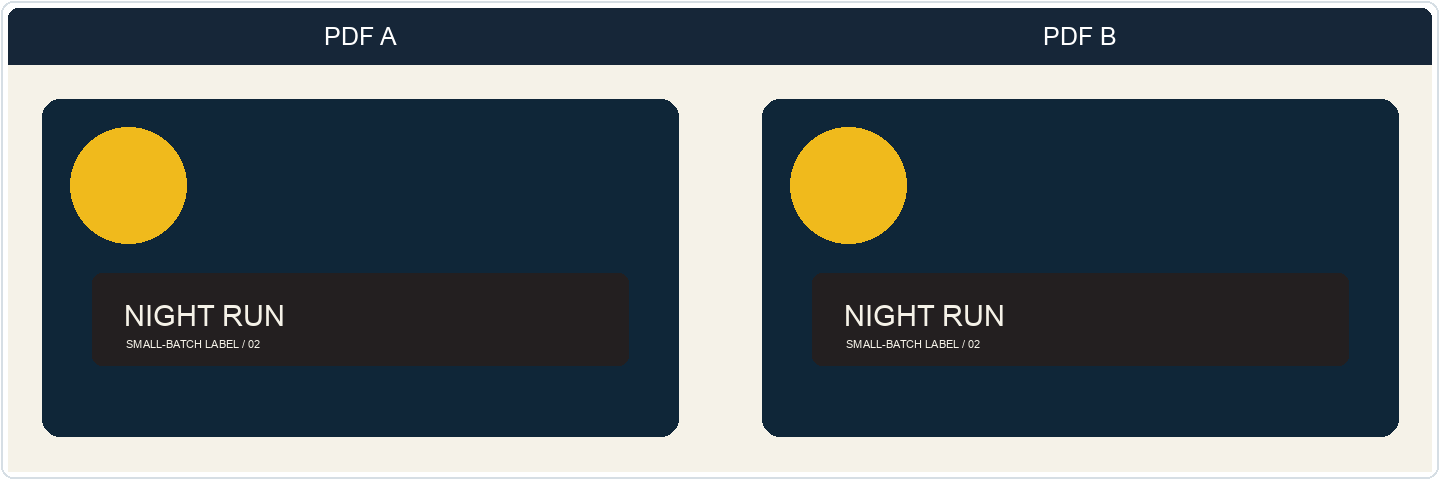
Look at the two pages above. They show the same label artwork. The black panel has the same size, position, and apparent color. Under this rendering condition, the composite rasters are identical.
That proves appearance equivalence under this condition. It does not prove production equivalence. "Identical on screen" means the same composite raster under a stated renderer, raster resolution, color-management condition, and preview setting. It does not mean:
- the files have the same bytes;
- the PDFs use the same internal structure;
- the same output channels will be used;
- the same ink will be used; or
- the same press result is guaranteed.
Would you approve either file from this view alone?
For a screen-approval question, perhaps. For a production question, the composite view is not enough.
An artwork approver may be signing off the composite. A prepress operator is accepting output instructions. Those are different approvals.
A composite page view is evidence about visible appearance under one condition.
Now turn on separations.
Now look at the separations
In PDF A, the black panel uses black ink only. In PDF B, it uses a rich-black process build: black plus measured amounts of other process inks. The exact values are workflow-specific.
The composite view can still make the two panels look the same. A production inspection gives a different result:
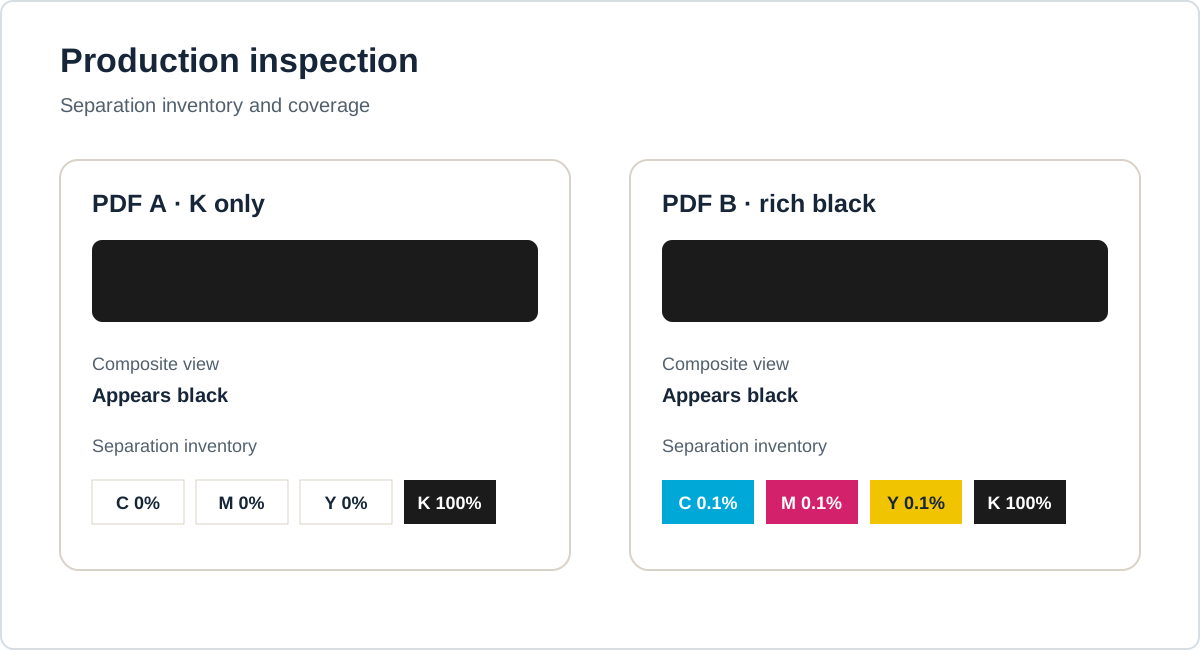
- PDF A places the panel on K only.
- PDF B places the panel on several process separations.
The PDFs therefore describe different process separations and different total ink coverage. The exact press result depends on the target workflow.
K-only black and a process build are different specifications, not universal recipes.
The first rule is simple:
Same pixels do not mean same separations.
More generally: same composite appearance does not mean the same production properties.
Adobe's documentation describes the difference between composite printing and separated output, and its output-preview tools show why a composite preview and a separation preview answer different questions. See Adobe's color and composite-printing guidance and previewing output in Acrobat.
Five more ways identical-looking PDFs can describe different production
The black example changes separation coverage. The next examples change properties a composite view may not expose.
Spot colors: the composite view can match while the named colorant changes
Give two PDFs the same red swatch. Call the named colorant Brand Red A in one and Brand Red B in the other. Give both the same alternate color space and tint transform. The composite view can match while a production inspection shows different named colorants.
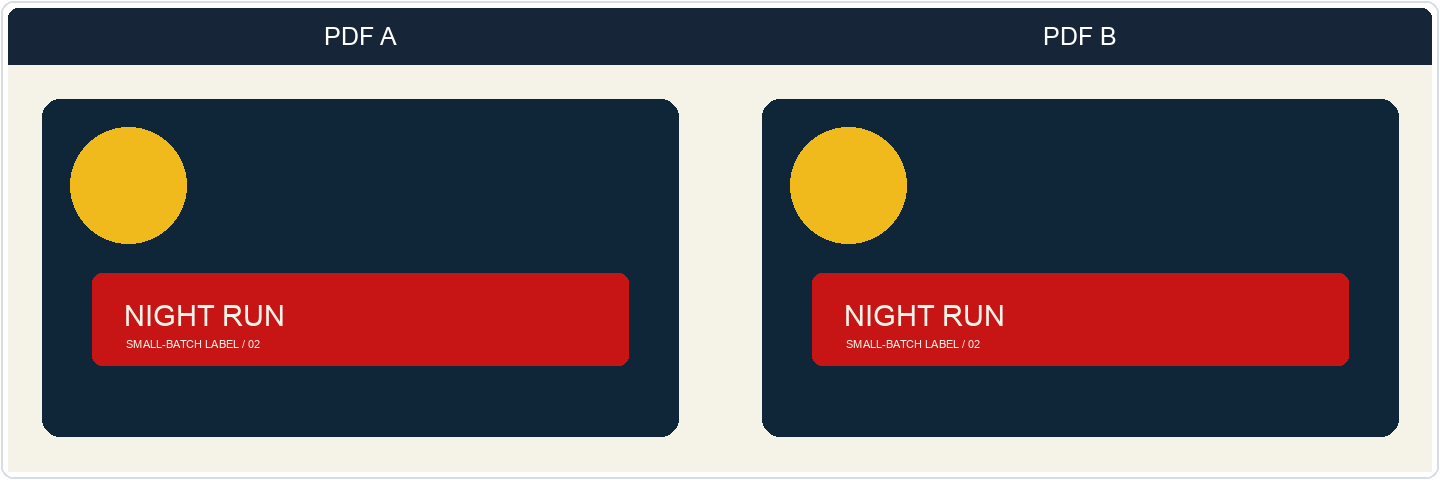
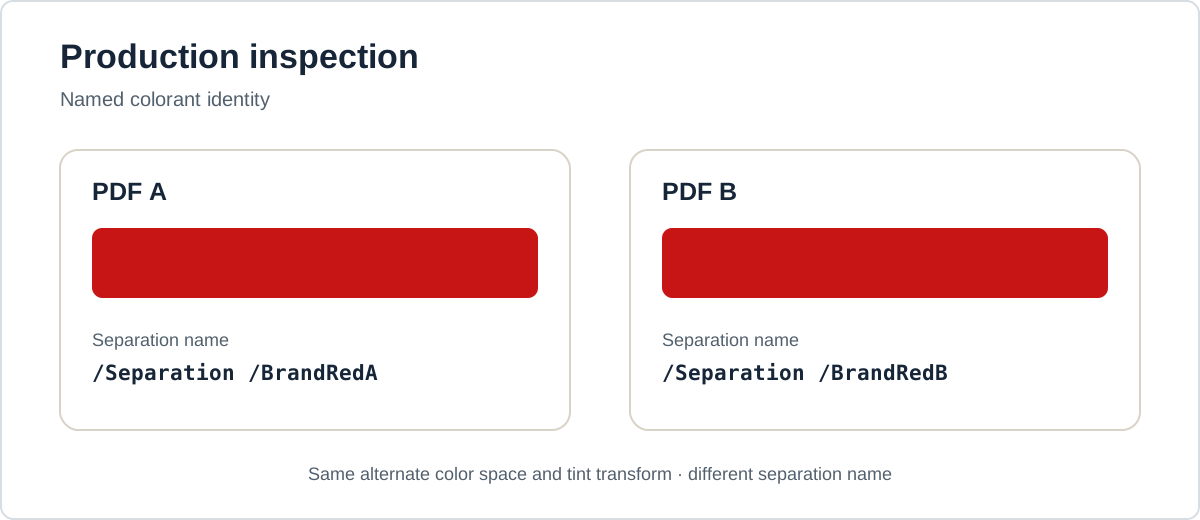
In a PDF, a Separation color space stores the colorant name, alternate color space, and tint transform; DeviceN stores several named colorants. The alternate representation supports a composite view, not colorant identity.
The alternate representations make the composite views identical under the recorded condition. They do not make the named colorants equivalent.
A receiving workflow may preserve, map, alias, or convert a named colorant; the composite swatch cannot tell you which. Two named spots with the same alternate preview can still identify different separations.
The Adobe PDF Reference color-space definitions describe Separation and DeviceN. Adobe's color conversion and ink-management guidance explains how named inks can be handled in a color-managed workflow.
Overprint: the difference is in how plates interact
Place a colored object over a colored panel. In one PDF, the object knocks out the inks below it. In the other, it overprints them.
The controlled comparison uses composite rendering without overprint simulation first. With overprint simulation disabled, both constructions render identically. Enable it, and the difference becomes visible.
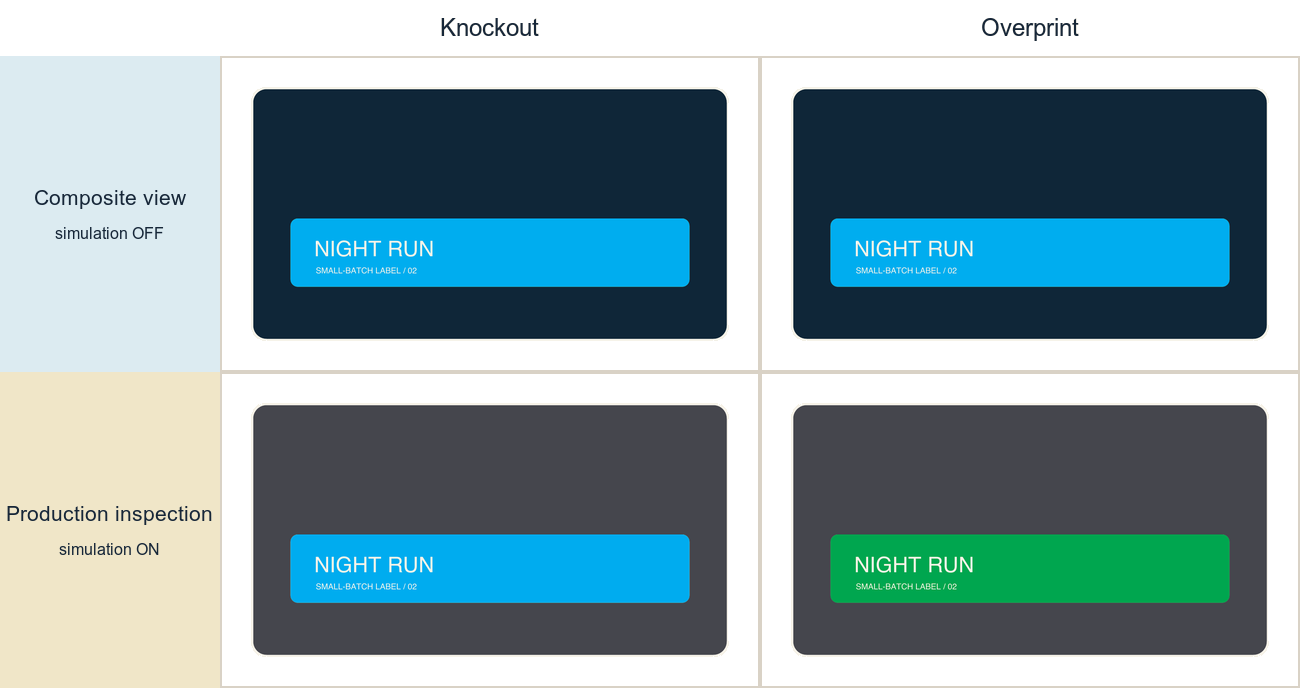
- A knockout removes the underlying colorants in the object's area.
- Overprint preserves them and adds the object's colorants where the output device supports that behavior.
Inspect OP for stroke overprint, op for fill overprint, and OPM for the overprint mode, then verify the separation result.
The Adobe PDF Reference overprint section defines the graphics-state settings. Adobe's overprint-preview guidance explains why the preview setting changes what an operator can see.
Technical output and Processing Steps answer different questions
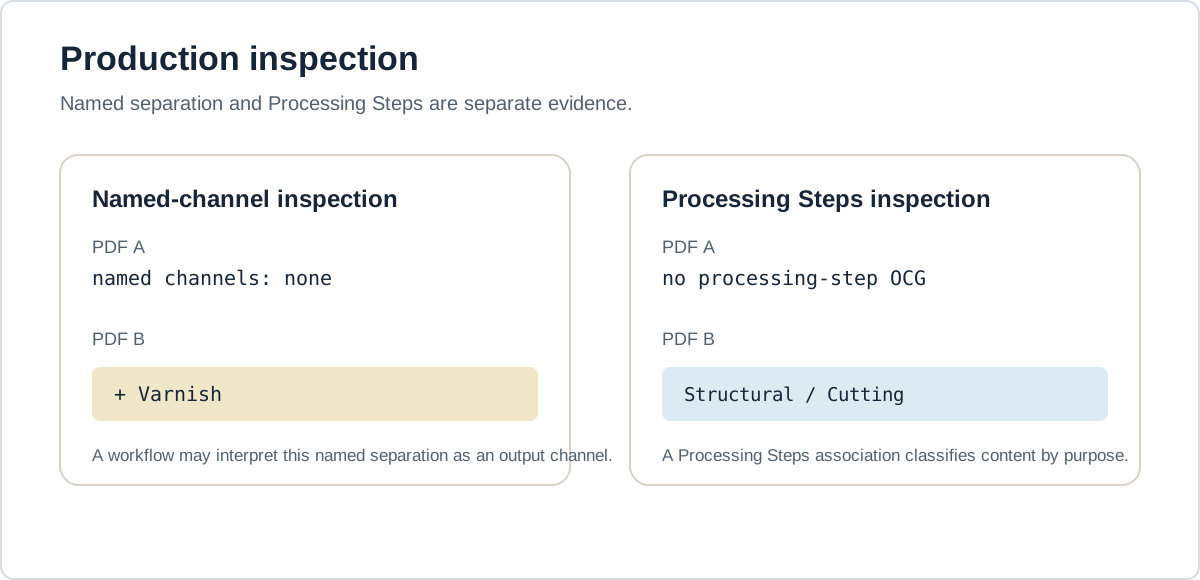
Technical output may use a named colorant or output channel, such as Opaque White, Varnish, Primer, or Metallic. A workflow may give that named separation a production meaning that a composite view does not show; the name alone does not establish it. A cut or crease line describes a production purpose, not an ink.
Processing Steps classify purposes such as cutting, folding, embossing, and braille. The ISO 19593-1 standard defines that semantic association.
These concepts complement each other:
- named separation → output channel;
- Processing Steps → production-purpose classification.
They are complementary, not alternatives: a named Varnish separation may be interpreted as an output channel, while a Processing Steps association classifies content by production purpose.
Transparency: same raster, different input for the RIP
Can two files rasterize identically while one contains live transparency and the other contains a flattened construction?
Yes, under a defined render condition.
This example is different. The earlier differences change what output is requested. Here, the visible result can be identical while the RIP, or raster image processor, receives a different construction to interpret.
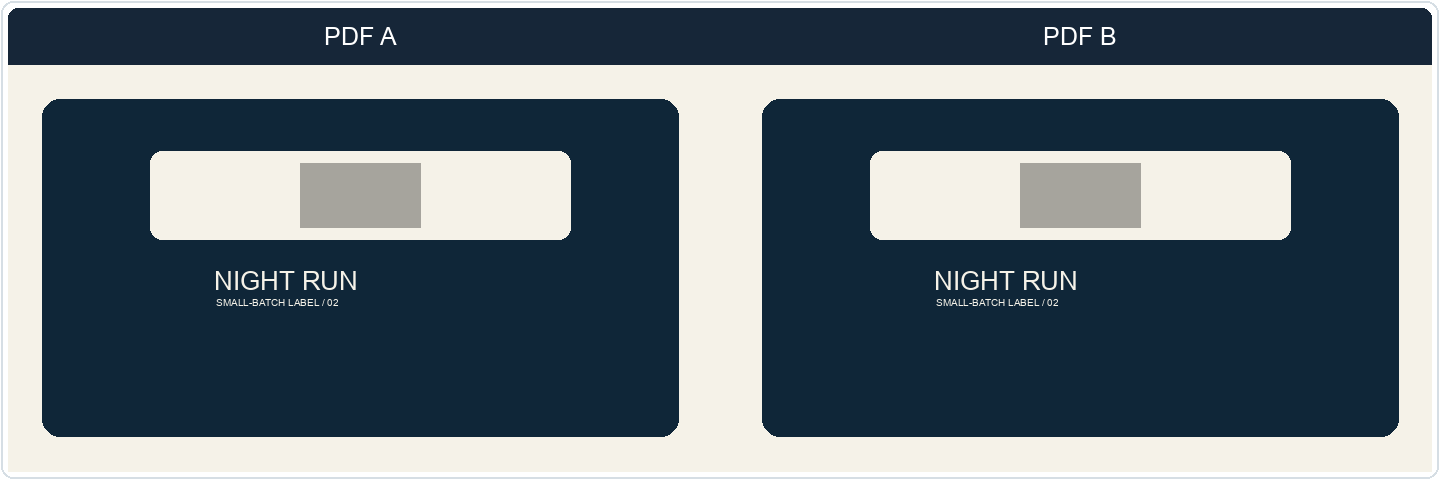
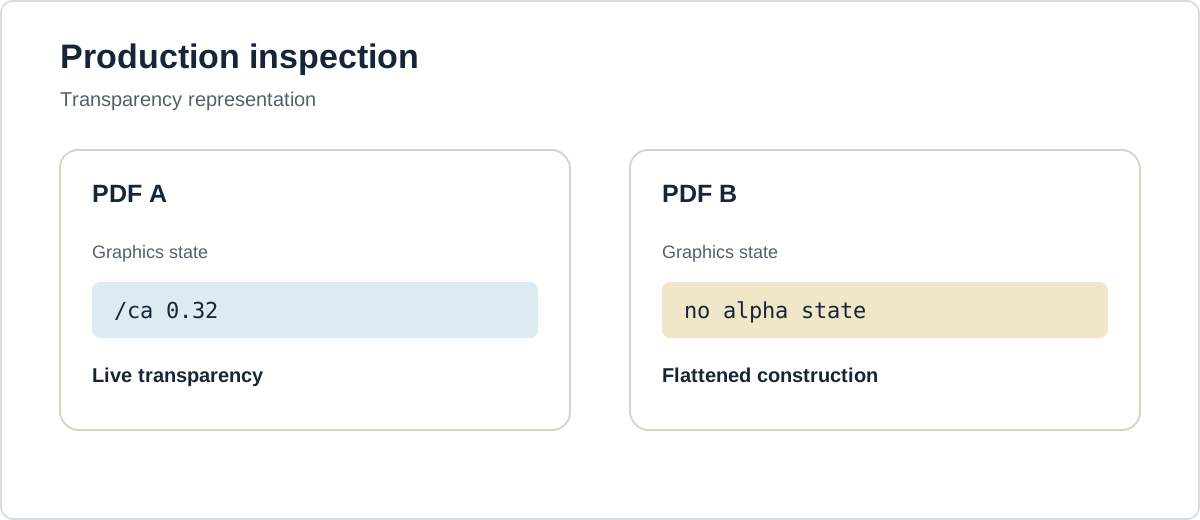
The receiving workflow may constrain which representation it accepts, and the flattener, blend space, or RIP capabilities can affect the result. Live transparency does not necessarily request different output; it gives the production system different input to interpret.
The Adobe PDF 1.4 transparency model defines live transparency. Adobe's PDF creation guidance discusses choices that affect transparency handling.
Output intent: the artwork can agree while the declared condition changes
It gets stranger.
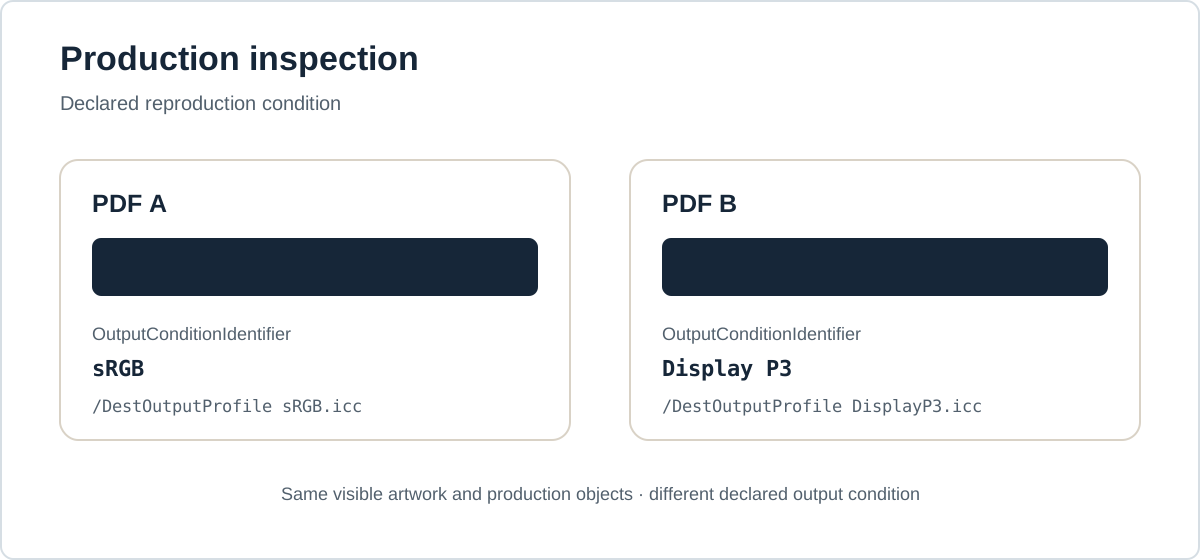
Hold the artwork, separations, and composite rendering constant. Change only the output-intent data, or remove the output intent from one file. The two PDFs can still show the same page and carry the same visible production objects while disagreeing about the reproduction condition for which those objects are intended.
An output intent can identify a target condition through an ICC profile and related data such as /OutputConditionIdentifier. A color-managed application can use that information to preview or convert color. It is not a complete press specification, and it does not convert every PDF color by itself.
Same production data do not necessarily mean the same intended output condition.
An output-intent inspector should compare the declared condition, not just ask whether a dictionary exists. Check /OutputIntents, the condition identifier, the destination profile, and the specified workflow's rules.
See Adobe's output-intents guide, its PDF/X settings reference, and the GWG output-intents guide.
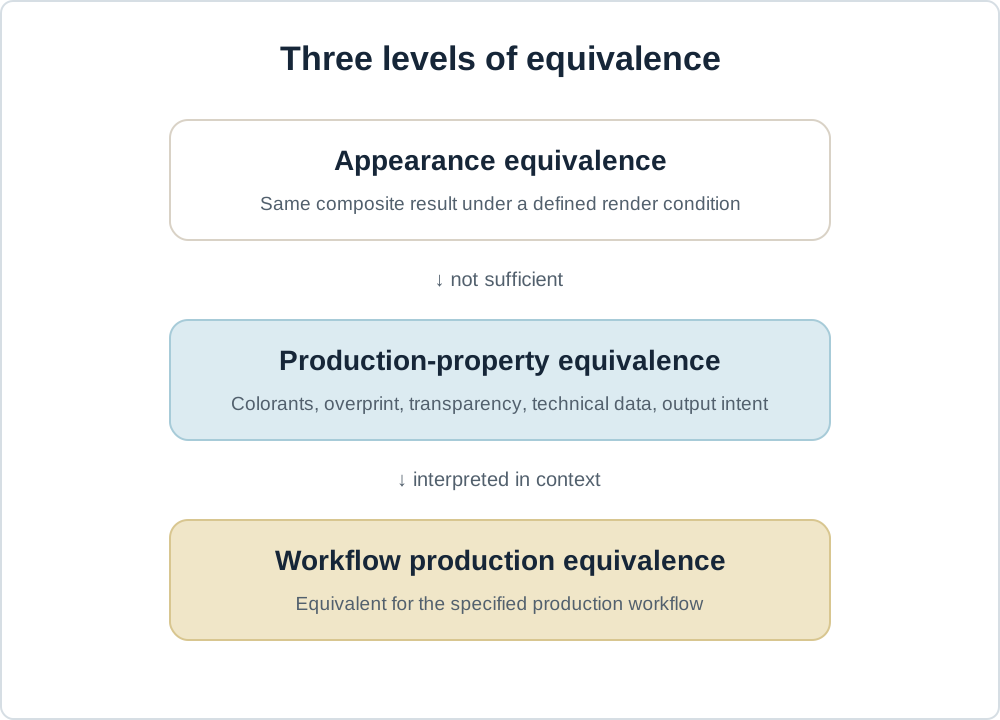
So what does "same PDF" actually mean?
The phrase "same PDF" hides several different tests.
The six examples form this progression:
Same composite appearance does not mean the same production properties.
Differences in production properties do not matter equally in every workflow.
Production equivalence therefore only has meaning relative to a specified workflow.
How to compare two PDFs intended for production
Use a comparison that separates the visual question from the production question.
Freeze the visual condition
Record the renderer and version, raster resolution, color-management condition, and relevant preview settings such as overprint simulation. If the condition is not recorded, "looks the same" cannot be reproduced.
Compare the visual result
Rasterize both PDFs under the same defined condition and identify whether any visual differences exist.
A match supports appearance equivalence under that condition. It does not prove equal separations or equal production properties. A difference proves that the selected condition renders the pages differently. It does not, by itself, identify which production property caused the difference.
Compare production properties
Inspect the properties the workflow depends on:
- process color spaces and colorant values;
- named spot and technical colorants;
- separation inventory and coverage;
- fill and stroke overprint settings;
- transparency representation and blend spaces;
- Processing Steps associations;
- output-intent data.
A file hash can prove exact byte equality. It cannot prove workflow production equivalence. A raster comparison can support an appearance claim. It cannot replace production inspection.
Interpret the difference in context
Apply the specified workflow's rules. Record which property differs, whether that difference is allowed, and what evidence supports the decision.
If the workflow does not define how to handle a property, report the result as unknown. Do not turn an uninspected technical channel, overprint setting, transparency representation, or output intent into a pass simply because the composite view matches.
The production rule
Visual equivalence answers a screen-preview question.
Production-property equivalence asks whether the relevant data in the two PDFs match.
Workflow production equivalence asks whether those data mean the same thing to a specified production workflow.
That is the order of inspection:
- Compare the visible result under a defined condition.
- Compare the production properties that the job depends on.
- Interpret those properties against the specified workflow.
If the relevant production properties have not been inspected against the job specification, "looks the same" is not evidence that two PDFs describe the same print job.
For automated PDF processing, that distinction becomes especially important: when production equivalence cannot be established, the safe result is "unknown; review required."